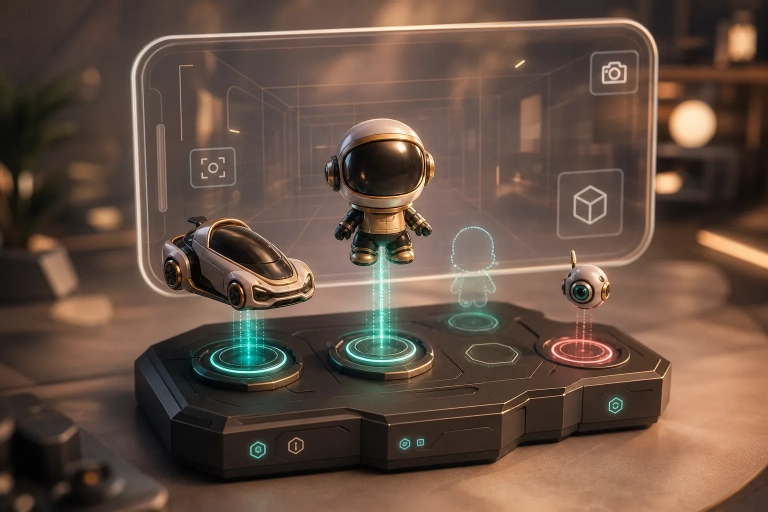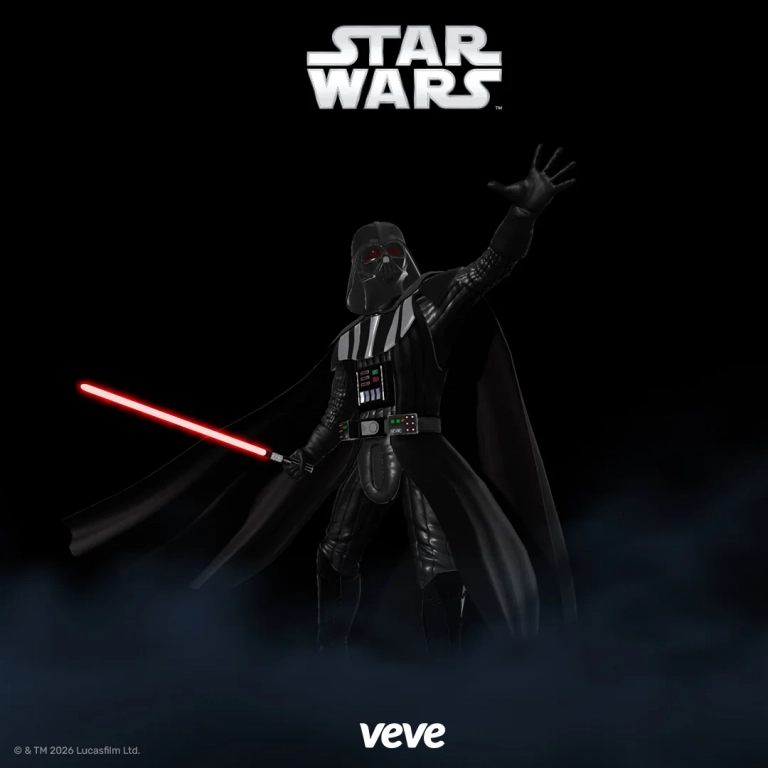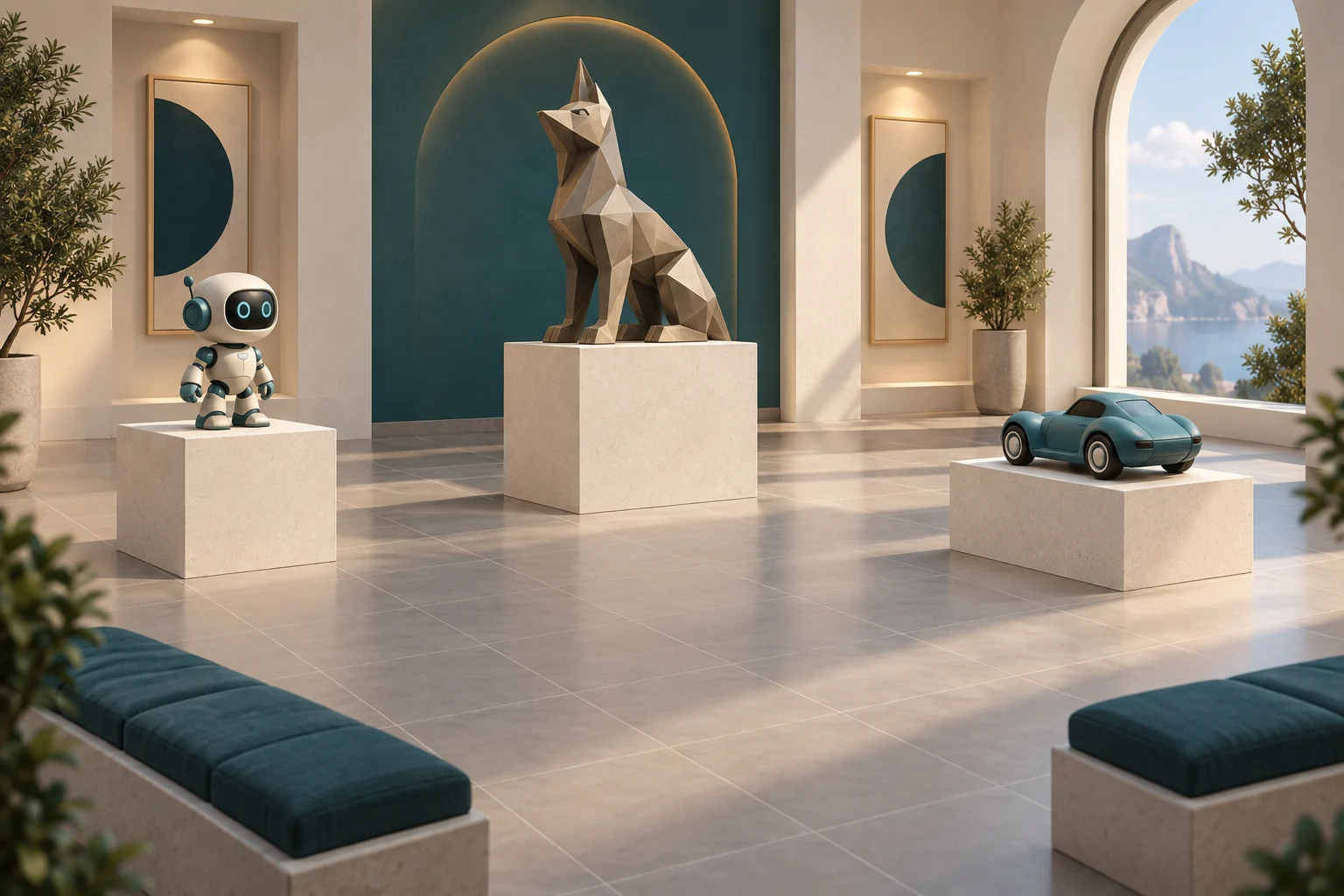
A VeVe Showroom turns individual collectibles into your own exhibition. Start with a favorite piece and build a scene around it: a character lineup, a vehicle display or a meeting between two different worlds. This guide covers the mobile Showroom’s placement tools, composition and supported vehicle interactions.
Choose the right display feature
VeVe’s official introduction places Virtual Showrooms in the Collection area and confirms moving, rotating and scaling collectibles. Its navigation description dates from 2024, so use the labels in your installed app if the layout differs. A Showcase is a separate way to organize and share selections; it is not the room-building workflow covered here.
For the wider virtual environment, use our VeVeVerse beginner’s guide. For placing a scene against your camera’s view of the real world, see the VeVe AR guide.
Build a small scene before adding detail
Add an owned collectible, select it, then use Move, Rotate and Scale to compose your display. VeVe’s documentation also describes Undo and Redo; follow the labels in your installed version for the exact controls.
- Pick one focal piece. Our suggestion is to begin with a single collectible and add companions only after the first placement looks right.
- Set position before size. Choose where the piece belongs, rotate it toward your intended viewing angle, then adjust scale. Changing one property at a time makes mistakes easier to spot.
- Check from another angle. Look for overlapping bases, hidden details and objects that appear to float. A pleasing front view can conceal a poor side view.
- Give the scene a focal point. Place supporting pieces beside or behind your favorite. Leave space around faces, weapons and distinctive silhouettes so the details remain visible on a phone.
Try grouping figures by story, color or pose. A small, readable arrangement often gives each collectible more presence than a crowded room. Save through the app’s workflow and reopen the scene before adding the finishing details.
Snap and vehicles: what the release notes confirm
The iOS release notes for version 2.0.37, dated April 8, 2026, list refinements to Snap, selection and saved Showroom metadata. They also describe steering-wheel driving, Snap-dependent driveability and vehicle scaling. That is a feature milestone, not the latest version: the listing checked for this article shows version 2.0.49.
The notes do not explain every eligible vehicle or Snap condition. Do not assume every displayed car must drive. Check the specific collectible’s official feature description before treating an absent interaction as a fault.
If placement or saving goes wrong
If something shifts or fails to save, try one small adjustment in a simple scene to narrow down the cause.
- The room does not load: check connectivity and the app’s update status, then compare with a simpler room. Note whether the failure affects one scene or every scene.
- An item shifts unexpectedly: select it again and change only one property. Note the Snap configuration and whether the shift happens immediately or only after reopening.
- A change is not retained: record the before-and-after position and repeat once with a small, nonessential adjustment. If the problem persists, stop editing the elaborate scene until it is understood.
- A vehicle does not respond: verify its documented interaction first. Record the vehicle and Snap setup; the release notes do not provide a universal toggle that makes all vehicles drive.
For a support report, include your device model, operating system, VeVe version, affected collectible and a short sequence that reproduces the problem. A screen recording of one failed placement is more actionable than “my whole room is broken.” Keep account credentials and verification codes out of screenshots.
Sources
- VeVe 101: Show Your Collection — core Showroom purpose and tools.
- VeVe Showroom V2 overview — historical control reference, December 2021.
- VeVe Collectibles: developer’s App Store release notes — April vehicle and Snap changes, plus later version history.