Augmented reality is one of the features that makes VeVe collectibles more than just 3D models in a collection. Using your smartphone camera, you can place characters, vehicles, dioramas, or artwork in your surroundings, view them from different angles, and capture them in photos or videos.
The AR experience updated in summer 2026 offers more direct editing and built-in capture features. This guide covers the full process for collectibles and comics, plus what to do when a model will not load, its placement jumps, or your device stutters.
TL;DR: Open AR in the VeVe app, select a collectible, scan a well-lit surface with visible texture, and place the model only after the surface has been detected successfully. Then adjust its position, rotation, and size. If you run into problems, better lighting, more open space, current app and operating system versions, a restart, and checking camera, photo, and microphone permissions will usually help.
What VeVe AR Can Do in 2026
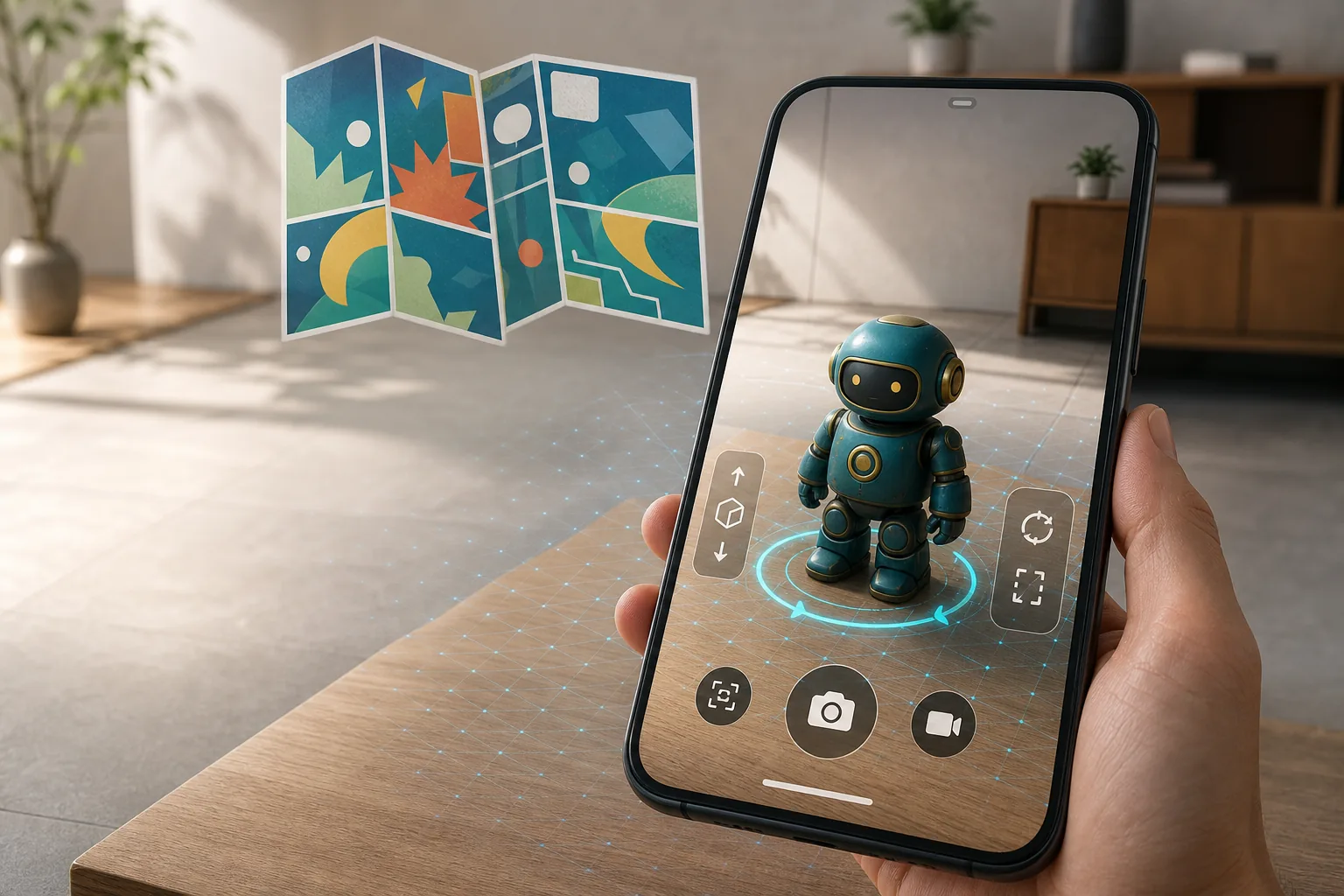
AR combines your smartphone camera feed with a digital 3D object. The app uses camera and motion data to detect a real-world surface and anchor the collectible to it. When you move around afterward, the model should remain in place with the correct perspective.
According to VeVe, collectibles can be placed, scaled, rotated, and repositioned in AR. Photos and videos can be captured directly from the AR view. For more complex compositions, you can first arrange multiple collectibles in a Showroom and then place the complete scene in AR.
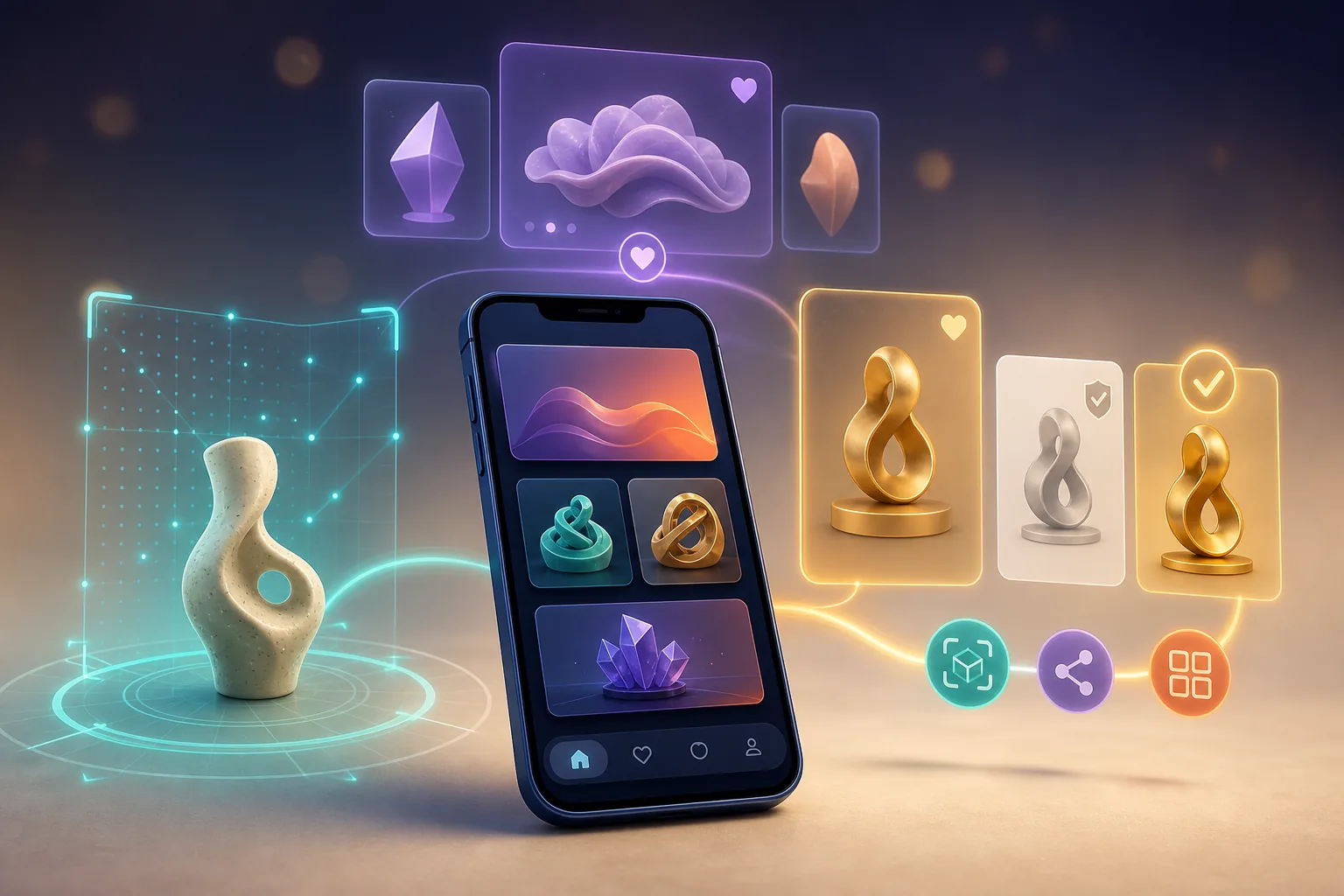
Available interactions depend on the item. A static model may only support viewing and positioning, while select collectibles include animations, sounds, vehicle features, or other special functionality. Check the relevant product or detail page for more information.
The differences in the redesigned 2026 interface are covered in more detail in our guide to the VeVe app update and AR purchase flow. The names and locations of individual buttons may vary slightly between iOS, Android, and later app versions.
Quick Start: Place a Collectible in AR
1. Prepare the App and Permissions
Install VeVe only through the official Apple App Store or Google Play Store, and check for an update before you begin. Allow the app to access your camera. Access to your photos or media storage may also be required to save your captures, while videos with sound require microphone permission.
Close large downloads or other resource-intensive apps if your smartphone has limited available memory. A stable internet connection is especially helpful when loading a 3D model for the first time.
2. Choose a Suitable Environment
Do not start in a dark, empty room. A well-lit surface with visible textures and contrast is generally easier to detect than a reflective table, a uniformly white floor, or a transparent glass surface.
Remove small obstacles from the scanning area and make sure you have enough room to move. A table or open section of floor is often enough for a regularly sized character, while life-size scenes require more space.
3. Open AR and Select a Collectible
Open the AR feature in the VeVe app and select AR mode. Then choose the 3D collectible you want from your Collection. In supported views, an AR action may also be available directly from the detail page.
Wait until the model and all required data have fully loaded. Switching between views too soon can unnecessarily extend the process on slower devices.
4. Scan the Surface Slowly
Move your smartphone steadily in small arcs over the floor, table, or another suitable surface. Do not swing it rapidly around the entire room. The goal is to give the app multiple angles of the same area.
If no surface is detected, take a step back, add more light to the area, or temporarily place a matte, patterned object nearby. Once tracking is stable, you can move the composition into a more complex part of the frame.
5. Place and Adjust the Model
Tap the detected surface to anchor the collectible. You can then reposition, rotate, and resize it. Use the controls and gestures shown in the app, as the exact controls may change with updates.
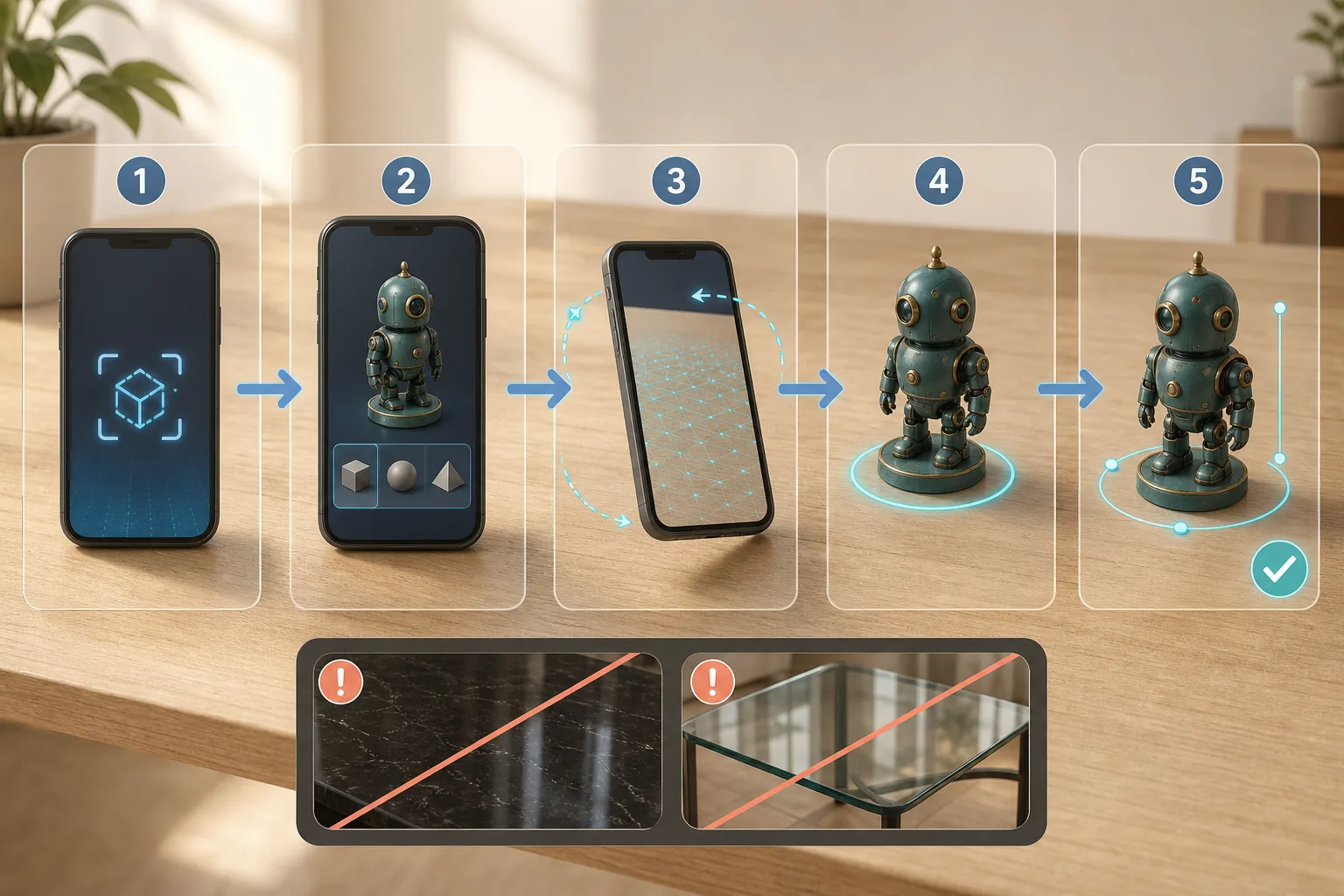
Start with a believable scale. A character placed on a table often looks like a physical collectible statue, while a life-size placement works better for photos with people or cinematic videos. For vehicles, dioramas, and movie props, use doors, furniture, or people as size references.
Set the Right Scale, Rotation, and Perspective
A technically correct placement does not automatically produce a convincing image. The most common visual problems come from an unsuitable scale, a floating position, or a camera angle that does not fit the scene.
- Check contact with the surface: Feet, bases, or tires should visibly rest on the detected surface rather than sink into it.
- Use leading lines: Align characters and vehicles with edges, walls, or paths to make them feel more grounded in the space.
- Vary the camera height: A low angle makes large characters appear more powerful. For small statues, an eye-level view just above the table often looks more natural.
- Avoid extreme scaling: Very small models lose detail, while oversized models make tracking errors and awkward framing more noticeable.
- Keep your distance: Physically step back instead of only scaling the model down digitally. This often creates a better sense of space.
Some dioramas support special placement relationships with certain collectibles. This is not the same as standard AR anchoring. Our VeVe Snap-to-Location guide explains which items work together and why not every collectible automatically snaps into place.
How to Take Better VeVe AR Photos
For a clean photo, wait a few seconds after setting the final position. Move your smartphone slightly left and right to check whether the collectible remains stable. Only then should you choose your final framing.
The most convincing shots often have clear visual direction: the collectible is the main subject, the background supports the scene, and unnecessary objects do not create distractions. Daylight is usually easier to work with than a single harsh lamp, which may create strong real-world shadows while the digital model appears to be lit differently.
Practical Photo Ideas
- Place a life-size character next to a person.
- Stage a small collectible like a physical statue on a shelf.
- Align a vehicle with a road or parking lot without entering traffic areas.
- Present a movie prop against a neutral background on a table or pedestal.
- Prepare multiple items with a shared theme as a Showroom scene and display them together in AR.
Check the saved image immediately after capturing it. Look for cropped elements, blur, visible notifications, and personal information in the background. Taking a second shot is easier than making extensive corrections later.
Want to try AR with a collectible of your own? Our VeVe sign-up and starter credit guide explains how to get started. With a qualifying new registration, you can receive $10 in free starter credit; check the terms and availability before registering.
Capture AR Videos Without a Shaky Scene
Videos require the same preparation as photos, but movement and tracking issues are more noticeable. Plan a short route first, such as a slow move around the character, a transition from a close-up to a wide shot, or a scene featuring a person.
Start recording only after the model is stable. Hold your smartphone with both hands if possible, and move slowly using your knees and core. Fast changes in direction, digital zoom, and sudden camera movements can make even a well-anchored collectible look unstable.
If the item is animated, test the animation once before filming. Check when it begins, how long it lasts, and which angle best shows the key movement. Not every collectible offers animation, sound, or controllable features.
Use Multiple Collectibles in an AR Scene
If you want to display multiple items together, VeVe recommends using a Showroom. Create an empty Showroom, add the collectibles you want, and arrange them there. You can then place and capture the prepared scene in your real-world environment using AR.
Start with two or three objects. Different base heights, extreme scales, and overlapping models can quickly make a scene feel cluttered. Choose a main subject first, then arrange the remaining collectibles to support it.
Compatible vehicles or interactive models may have additional requirements. Test the feature in a simple environment before building an elaborate scene. This helps you identify early whether a particular item can load, animate, or connect correctly.
Read VeVe Comics in AR
VeVe continues to describe AR comic reading as a core feature. The feature was reintroduced or expanded in the VeVe app in August 2026. It lets you display supported digital comics as spatial objects in your surroundings instead of viewing them only in the standard reader.
Open the comic you want from your Collection and look for the AR or AR reading option. If it is available, follow the prompts to scan your surroundings and place the comic on a suitable surface. You can then adjust the angle and size so that the pages and panels are easy to read.
- Use a table or open section of floor with even lighting.
- Scale the comic up before reading longer passages of text.
- Remain still while viewing small speech bubbles or details.
- Switch to the standard reader if you want to read comfortably for an extended period.
- If the AR option is missing, first check the app version, download status, and availability for that specific comic.
AR is especially useful for viewing cover art, individual pages, or panels at a large scale in the room. For managing issues and variants or using standard reading features, see our VeVe Comics guide to reading and collecting.
Troubleshooting: Fix Common VeVe AR Problems
AR Does Not Load or Gets Stuck on the Model
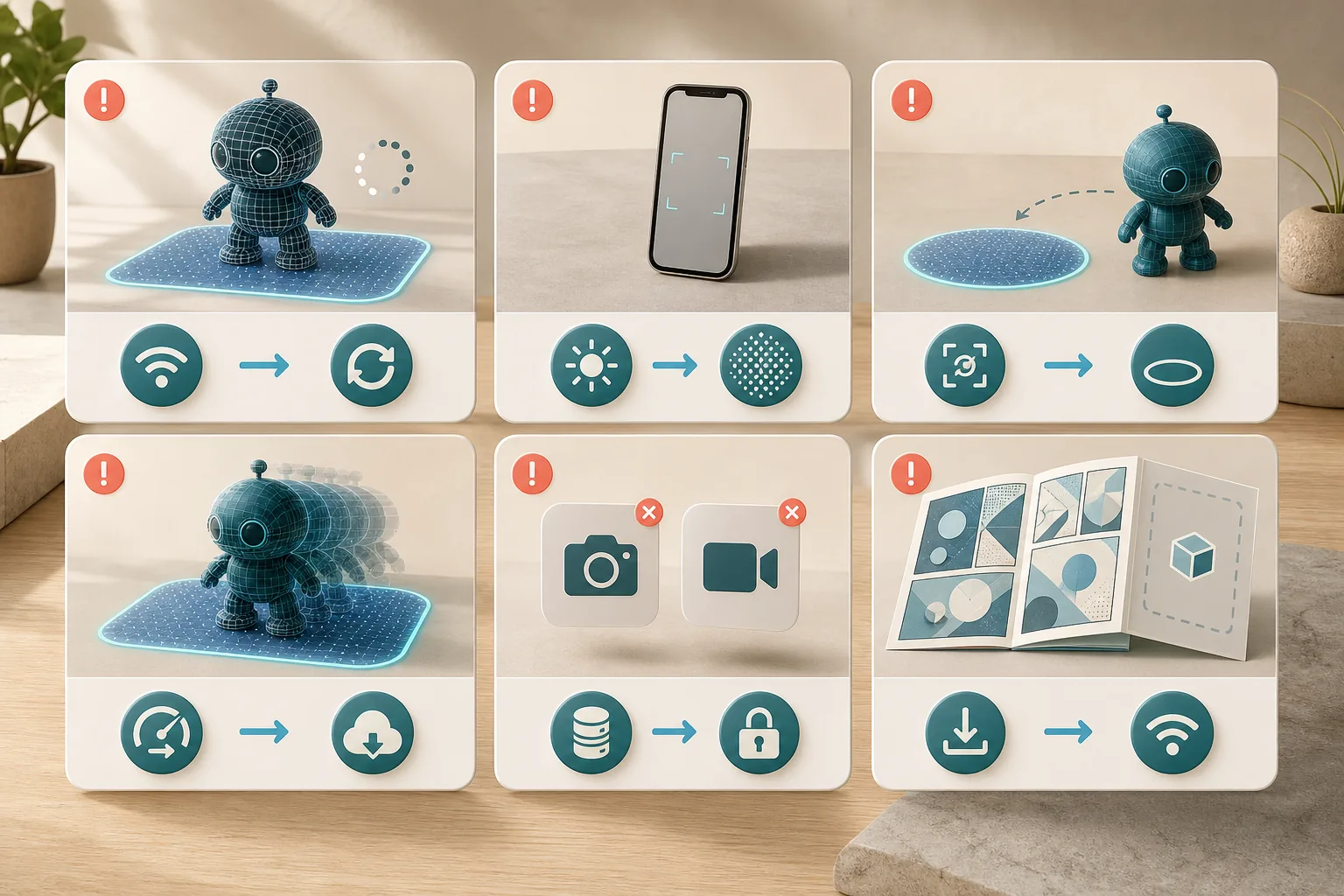
First, check your internet connection and wait to see whether the download finishes. Fully close the app and reopen it. If that does not help, restart your device, check the available storage, and install any available updates for VeVe and your operating system.
Then test a second collectible. If only one specific item does not work, the issue may be with the model or its files. If no items work, the app, permissions, connection, or device compatibility is more likely to be the cause.
The App Does Not Detect a Surface
Move to a brighter area and scan a matte surface with visible texture. Avoid glass, mirrors, highly polished floors, and uniformly colored walls. Move the smartphone slowly and keep the same area in view for several seconds.
The Collectible Jumps or Drifts
Tracking can become unstable when the lighting changes, many people move through the frame, or the detected surface has few visible features. Place the model again, avoid abrupt camera movements, and maintain enough distance from the surface.
If you leave the room or completely cover the camera for a moment, the app may lose its spatial orientation. In that case, performing a new scan is usually more reliable than trying to rescue a scene that has shifted significantly.
The Model Stutters or Looks Blurry
Close other apps, stop screen recordings, and reduce the scene’s complexity. Multiple highly detailed collectibles place more demand on the device than a single model. Also make sure your smartphone is not overheating and that an aggressive power-saving mode is not active.
As of August 25, 2026, the Apple App Store lists iOS 16.6 or later as the minimum requirement for the iPhone app. On Android, the practical AR experience depends more heavily on the specific device, available AR support, operating system, and performance.
Photos or Videos Are Not Saved
Check your system settings to confirm that VeVe has permission to save photos and videos. Also check the available storage on your device. Microphone access must be enabled for video recordings with sound; without permission, the recording may be silent or may not start as expected, depending on the system.
AR Comics or the AR Button Are Missing
Update the app and reopen the comic from your Collection. Not every view provides the same quick actions, and features may be rolled out gradually or displayed based on the content. Use the standard comic reader until the issue is resolved.
Reinstalling as a Final Local Troubleshooting Step
First, note the app version, device model, and exact error message. Make sure you have the correct login credentials and access to your email address. Only then should you reinstall the app through the official store. Avoid APK files or download links sent through direct messages.
If the problem continues, document it with a screenshot or short screen recording. Our guide to contacting VeVe Support explains what information to include in a useful ticket.
Safety and Privacy Check Before Sharing
AR captures can unintentionally reveal more about you than a standard screenshot. Check the entire background, not just the collectible. House numbers, mail, family photos, license plates, school names, and visible security details do not belong in a public feed.
- Use only the official VeVe app from the App Store or Google Play Store.
- Do not open supposed AR plugins, wallet connections, or special downloads sent through DMs.
- Do not film on roads, stairs, or in other risky areas while looking at the screen.
- Get permission from identifiable people before publishing footage of them.
- Check videos for spoken names, addresses, and notification sounds.
- Back up important original captures before editing them in other apps.
Collector Checklist for Stable AR Captures
- The VeVe app and operating system are up to date.
- Camera, photo, and, where needed, microphone access are enabled.
- The internet connection is stable and enough storage is available.
- The scanning surface is well lit, matte, and not too featureless.
- The collectible is visibly resting on the surface.
- The scale and perspective fit the surroundings.
- The scene remains stable during a short test movement.
- The background contains no private information.
- The photo or video was checked after saving.
VeVe AR FAQ
Do I Need to Own a Collectible to Use VeVe AR?
You need the relevant digital collectible to select it from your Collection. The preview or quick actions available for items you do not own may depend on the specific app view.
Can I Display Multiple VeVe Collectibles in AR at the Same Time?
Yes. VeVe describes a workflow using Showrooms: create a scene, add and arrange collectibles, and then place the entire Showroom in AR.
Why Is My Character Floating Above the Floor?
The surface was most likely detected inaccurately, or the model was moved vertically after placement. Scan the surface again, place the collectible again, and check the base, feet, or tires from a low side angle.
Can Every Collectible Drive or Be Animated?
No. AR placement is generally available, but special animations, sounds, or vehicle features depend on the individual collectible and how it was created. Always check the item details.
Is AR the Same as the VeVeVerse?
No. AR uses your mobile camera to place digital content in your real-world surroundings. The VeVeVerse is a separate virtual desktop environment with customizable Spaces and its own controls and display features.
Does AR Work in the Dark?
Low light makes it harder to detect surfaces and spatial features. An evenly lit environment is much better for scanning, tracking, and image quality.
If you want to try VeVe AR and create your first scene, you can sign up for VeVe with $10 in starter credit. With a qualifying registration, you will receive $10 in free starter credit. Disclosure: VeVeInsider may receive an affiliate commission; there is no additional cost to you, and you will receive $10 in free starter credit.
Sources