For many collectors, the VeVeVerse is the most exciting part of VeVe—but it also raises the most questions for beginners: Where do you download it? Why does a Space take so long to load? How should you arrange collectibles, comics, and decorations? And what does it mean when parts of your collection are not yet visible in the library?
This guide walks you through getting started with the VeVeVerse in 2026. The focus is not on hype, but on practical use: installing it properly, understanding the key controls, building your first Space, narrowing down performance issues, and using social features thoughtfully.
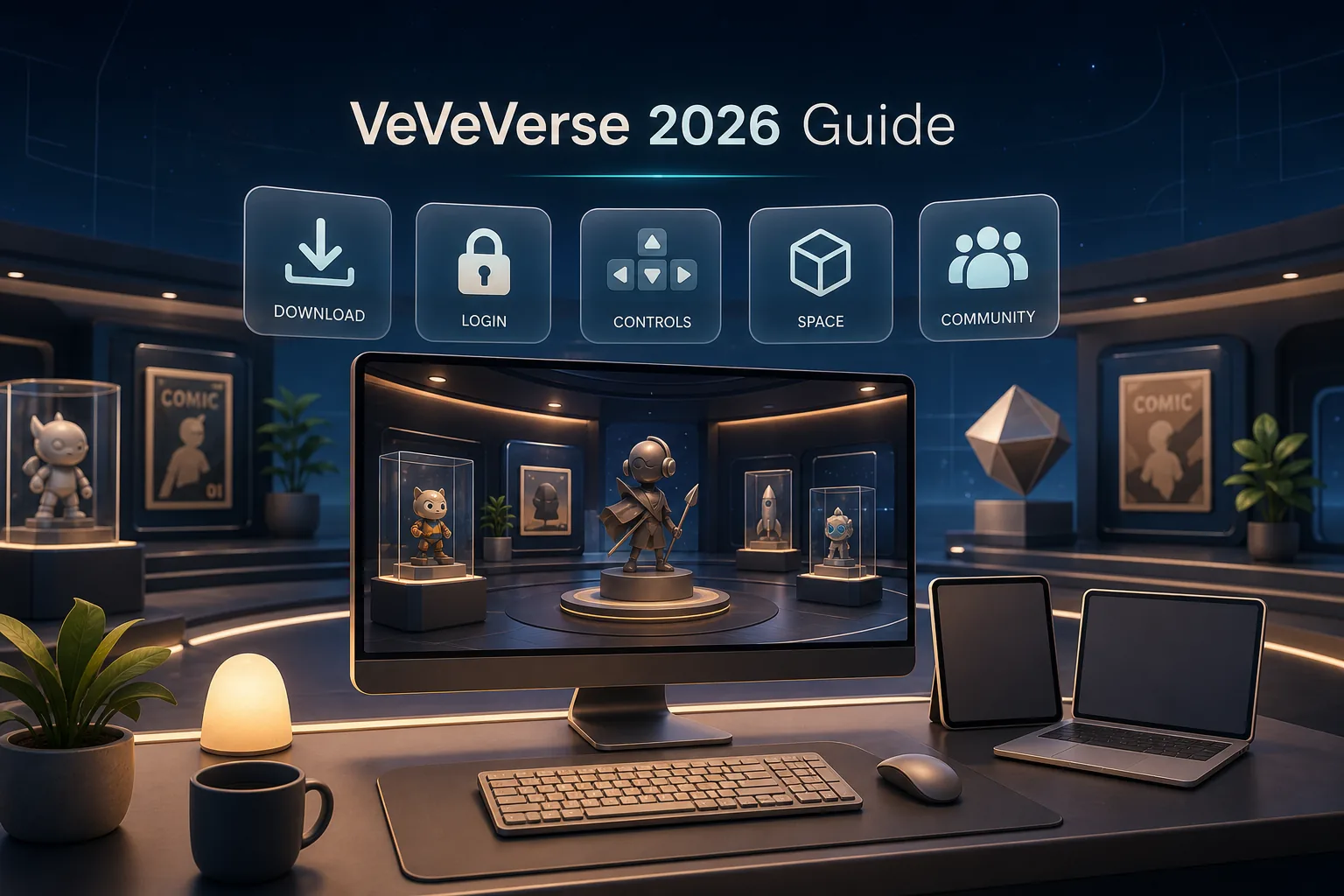
TL;DR: The VeVeVerse is currently primarily a desktop experience for Windows and Mac. You sign in with your VeVe account, create or open a Space, navigate with your keyboard and mouse, place available collectibles, comics, and decorative objects, and invite other collectors through the member management features. If you experience lag, your graphics settings, internet connection, Space complexity, and hardware are the first things to check.
What Is the VeVeVerse?
The VeVeVerse is the immersive experience layer for VeVe collectibles and digital comics. Instead of viewing your collection only in lists or on detail pages, you can display and arrange it in virtual Spaces and experience it with others.
According to VeVe, the focus is on personalized showrooms: You can create and decorate Spaces, place collectibles and comics, and invite other users. One important point: The VeVeVerse does not replace the standard VeVe app or the Market. It adds presentation, creativity, and social features.
If you are completely new to VeVe, start with the 2026 VeVe Beginner’s Guide. The VeVeVerse makes the most sense once your account is properly set up and you have a basic understanding of collections, the Store, the Market, and account security.
Quick Start: How to Get Started in the VeVeVerse
The most important rule is to use only official download and login channels. Because the VeVeVerse requires a desktop download, fake installers, fraudulent search ads, and supposed “Early Access” links create unnecessary risk.
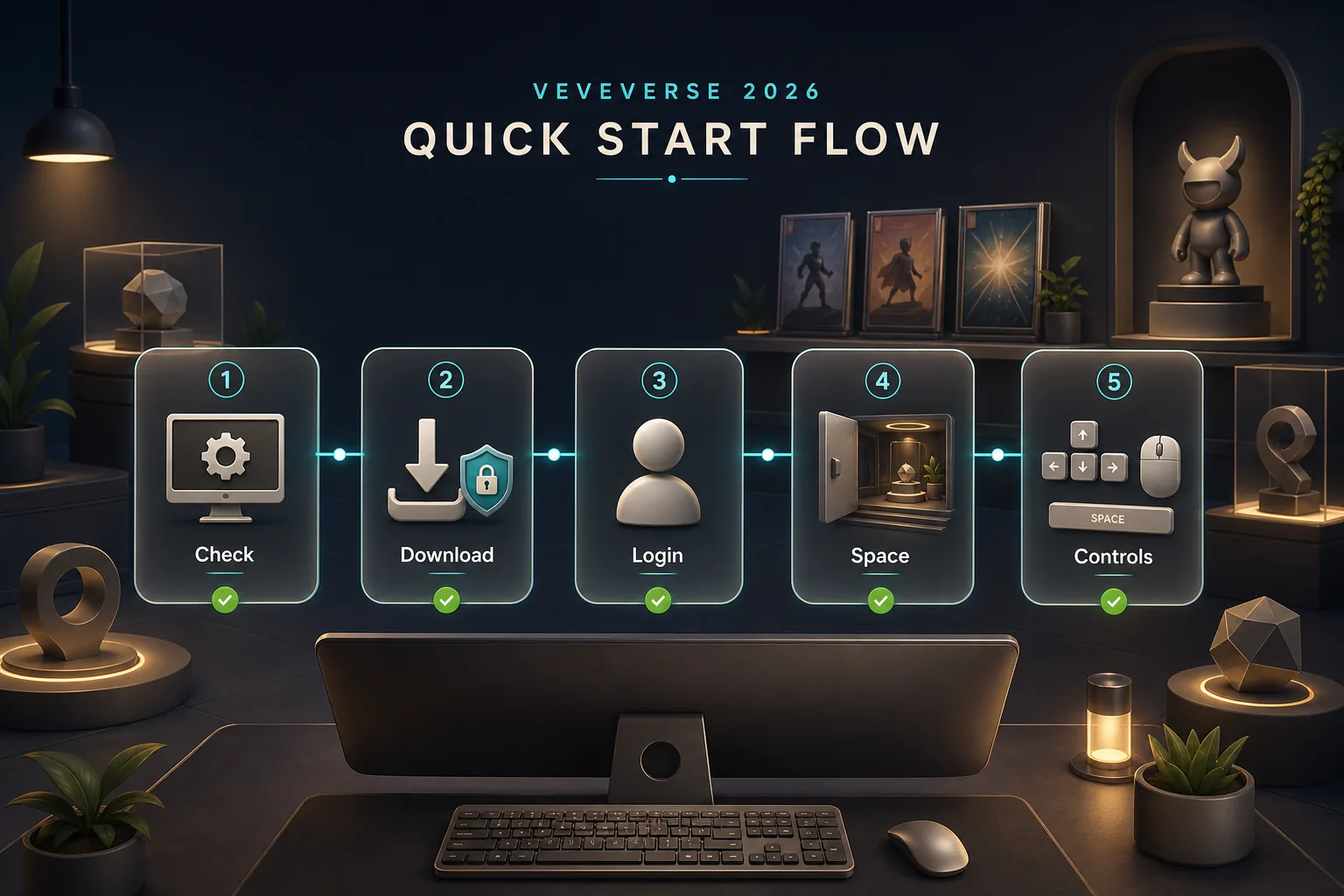
1. Check Your System
The VeVeVerse is designed for desktop use. The official VeVeVerse page lists Windows and Mac, and 16 GB of RAM is recommended for high graphics quality. It may also run on less powerful hardware, but you should expect to use lower graphics settings.
Plan for some patience as well: Spaces are downloaded locally to your computer. VeVe states that average Spaces typically take about 1 to 3 minutes to load, depending on your internet connection and the complexity of the Space.
2. Download and Sign In
Open the official VeVeVerse page, select the appropriate Windows or Mac version, and install the application like a standard desktop program. Then sign in with your VeVe account.
Do not use links from direct messages, comments, or unfamiliar shortened URLs. If a download claims to be faster, exclusive, or “unlocked,” treat that as a warning sign.
3. Open or Create Your First Space
After signing in, you can open an existing Space or create a new one. For beginners, a simple template is often more useful than a completely empty room because it helps you understand placement, pathways, lighting, and sightlines more quickly.
Start small. A Space with a few carefully selected items loads more easily, is easier to navigate, and helps you learn the tools before bringing in an entire collection.
4. Learn the Controls
VeVe lists keyboard and mouse controls for navigation, including the arrow keys for movement, Shift to move faster, Space or E to ascend, and Q to descend. Additional controls may be available depending on the view and tool you are using.
My tip: Spend your first five minutes moving around instead of building. Walk through your Space, test changes in elevation, move around objects, and see how quickly you can get oriented. This will save you frustration when placing items later.
Building Spaces: A Simple Workflow for Collectors
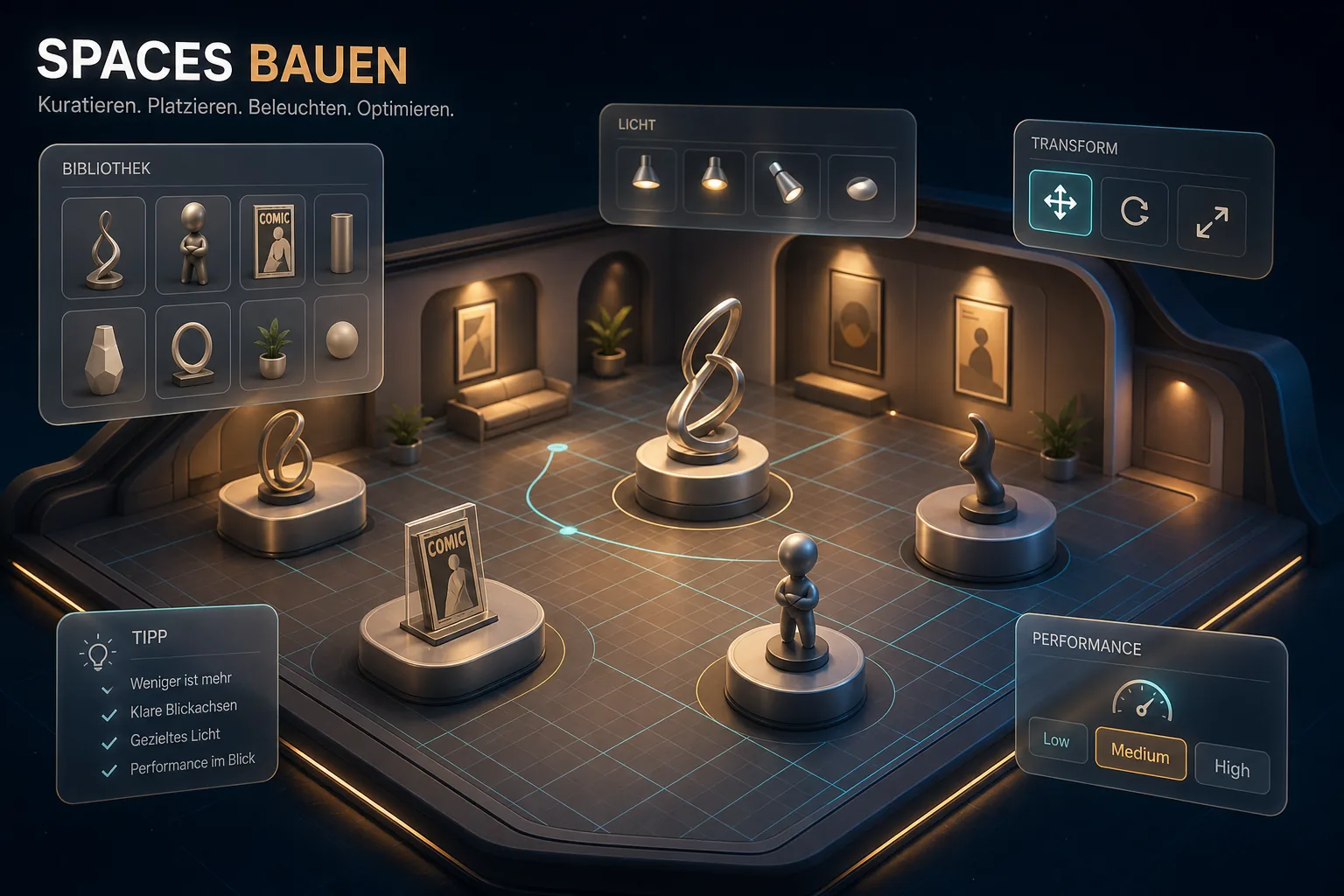
A good VeVeVerse Space is not simply a room packed with items. Think of it as a curated exhibit: one theme, clear pathways, enough room between highlights, and lighting that complements the collectibles.
Step 1: Choose a Theme
Start with a simple question: What should a visitor understand within 30 seconds? Examples might include “my Star Wars vehicles,” “Marvel hero wall,” “comic reading corner,” or “favorite pieces instead of my complete collection.”
Mixing too many themes can quickly make a Space feel cluttered. A clear focus with a few standout items usually works better, especially if you plan to invite visitors.
Step 2: Use the Content Library
According to VeVe, the Content Library includes collectibles, comics, and additional decorative elements such as lights, shapes, vegetation, and similar design assets. Not everything needs to be a rare collectible: Shelves, light sources, and plants can make a display much easier to take in.
Important: Your entire personal collection is not automatically available in the VeVeVerse yet. If a collectible or comic is missing, that does not necessarily mean it has disappeared from your VeVe account. First check whether it is simply not yet supported in the VeVeVerse library.
Step 3: Place, Rotate, and Scale
Start with broad placement: Put the item in the room, check its position, and then fine-tune its rotation and height. Once the basic layout works, you can focus on spacing, lighting, and sightlines.
For dioramas or scene-based displays, it is also important to know whether specific placement features are supported. If you are interested in precise display mechanics, the guide to VeVe Snap to Location provides additional context.
Step 4: Don’t Overdo Lighting and Materials
Lighting can make Spaces look more polished, but it can also affect performance and wash out featured pieces. Use a few targeted light sources rather than filling the room with effects.
A good test is to view your Space from a visitor’s perspective. If the highlights are immediately recognizable, pathways remain clear, and the layout is easy to navigate, the design is usually stronger than a room overloaded with effects.
Performance: Why Does the VeVeVerse Lag?
Lag does not automatically mean that “something is broken.” Several factors come together in the VeVeVerse: desktop hardware, graphics settings, internet connectivity, the Space’s loading status, and the number and complexity of placed objects.
Low Profile: Stability Over Visuals
Use a Low profile if your computer has limited performance or a Space struggles while loading. Reduce shadows, effects, and graphics quality, wait for the Space to finish loading completely, and only then begin actively moving around.
Medium Profile: Everyday Use for Most Spaces
A Medium profile makes sense if you want smooth building performance without forcing maximum graphics quality. For standard showrooms, it is often the best balance between visuals and usability.
High Profile: For Screenshots and Powerful Hardware
High settings are most useful for screenshots, static presentations, or powerful computers. When actively building, a slightly lower profile may feel better because placement, rotation, and testing respond more quickly.
New to VeVe? Our VeVe Sign-Up Bonus Guide walks you through the process step by step. If you complete a qualifying sign-up, you will receive a free $10 sign-up bonus. This is not a recommendation to buy or an indication of potential profit, but a practical starting point for new users.
Social Features: Invite Friends, Understand Roles, and Stay Safe
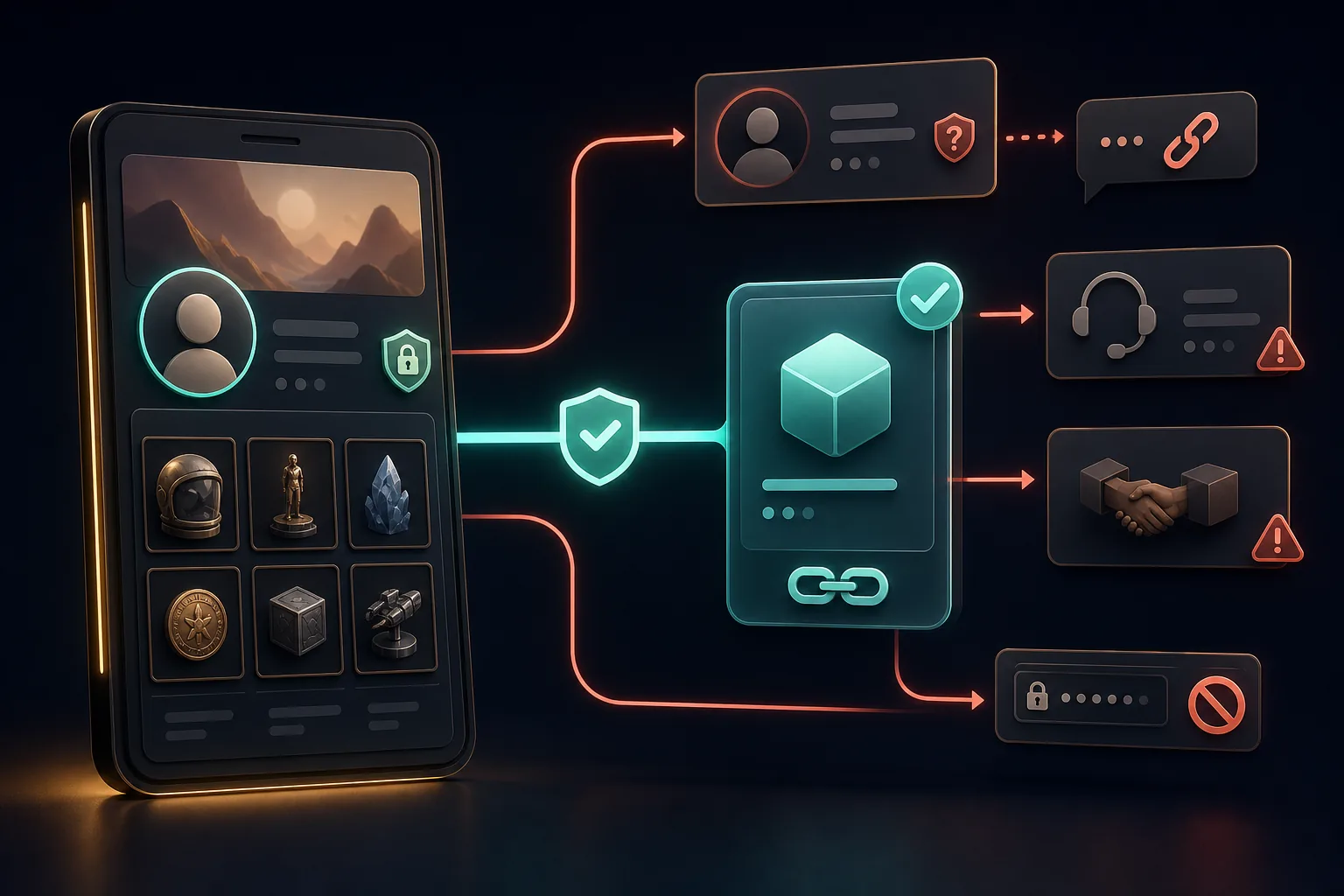
The VeVeVerse is not just a building tool—it is also a social space. VeVe lists text, audio, and video tools, along with invitations through member management. These features let you bring other collectors into specific Spaces and give them different levels of access.
Visitor or Collaborator?
Before inviting someone, decide what you want that person to do. A visitor is there to view and experience the Space. A collaborator needs more permissions but can also make more changes.
Collaboration can be exciting for jointly curated Spaces. For private collection rooms, assign roles restrictively and invite only people you genuinely trust.
Use Voice and Video Thoughtfully
Audio and video can make a Space feel more lively, but they are also more personal. Use them thoughtfully, especially during public or semi-public meetups.
Do not share sensitive information in conversation. This includes login information, email details, support tickets, payment information, or codes. If someone pressures you in chat, end the interaction.
Scam Protection in the VeVeVerse
The most important rule remains simple: Use only official channels for downloads, login, and support. Do not install software from third parties, respond to wallet connection requests in DMs, or trust supposed admins who ask for codes or screenshots.
For more guidance on staying safe while using VeVe, read our guide to common VeVe beginner mistakes and fixes. Many VeVeVerse risks are not new—they are familiar account and link scams appearing in a more social environment.
Collector Checklist: Your First Great Space
- Official download: Do not use installers from DMs, forum comments, or advertisements.
- Start small: Build a compact Space first, then expand it.
- Curate your collection: Do not place everything—choose your highlights.
- Test performance: After each major building phase, save, reload, and walk through the Space.
- Use lighting sparingly: Choose a few clear light sources instead of overloading the Space with effects.
- Check roles: Treat visitor permissions differently from editing permissions.
- Protect your privacy: Show only what you genuinely want to share publicly or semi-publicly.
Common Problems and Quick Fixes
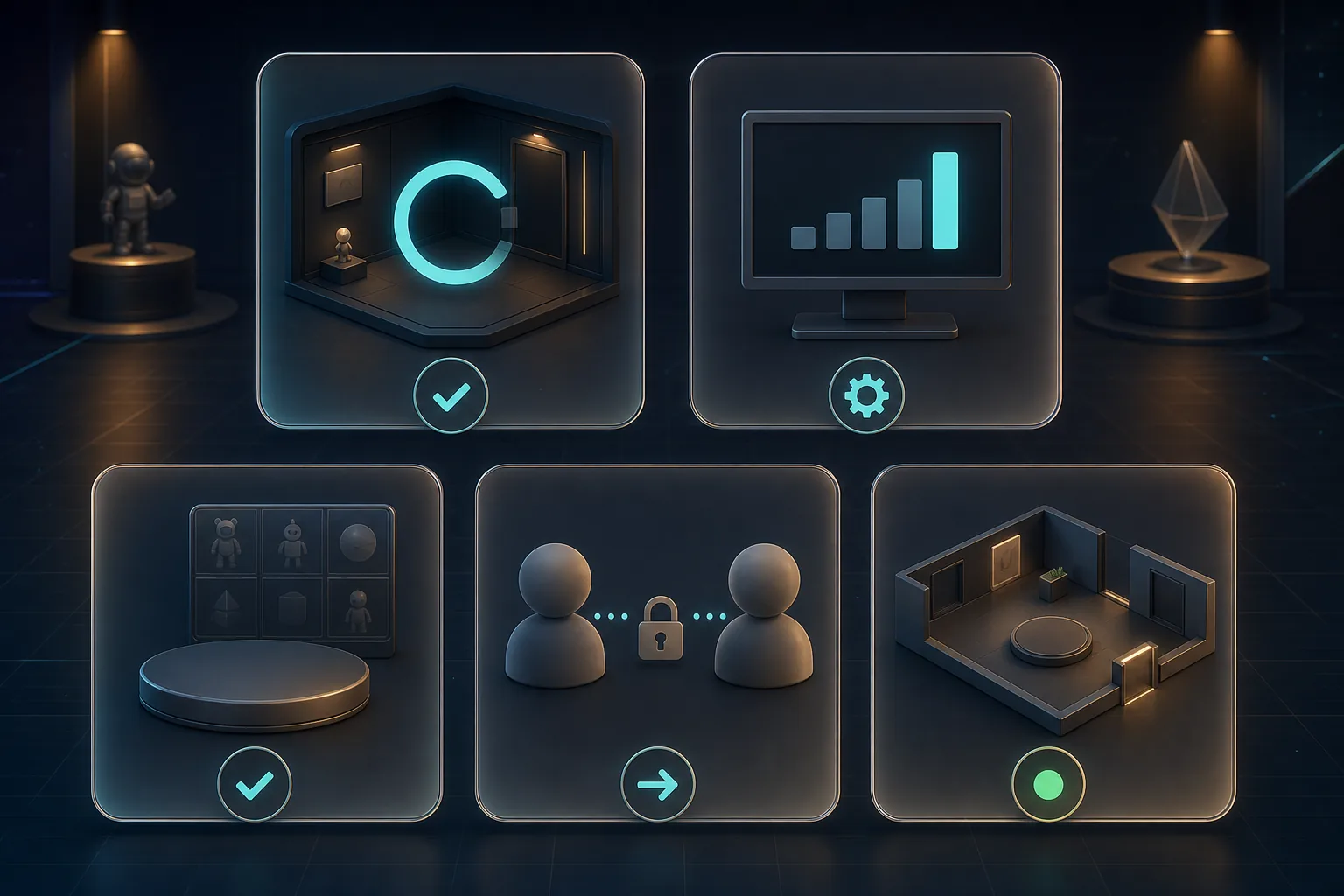
Problem: A Space Won’t Load or Loads Very Slowly
First, wait until the loading process has actually finished. Large or complex Spaces can take noticeably longer to load than simple rooms. Then check your internet connection, restart the app, and see whether other programs running in the background are using system resources.
Problem: Graphics Are Lagging
Lower the graphics settings and test again. Shadows, lighting, and complex scenes can be especially demanding on less powerful systems. If the Space lags during the initial load, do not immediately move around frantically. Give it a moment to finish loading.
Problem: Items Are Missing From the Library
This is one of the most common misunderstandings: Not every VeVe item is automatically available in the VeVeVerse. If a collectible or comic is missing, check its current VeVeVerse availability rather than looking only at your standard VeVe collection.
Problem: An Invitation Isn’t Working
Check whether the invited person has a VeVe account and whether you are using member management in the correct Space. Also review the assigned role: Should the person only visit, or should they be able to help build?
Problem: The Space Feels Cluttered
Start by removing 20 to 30 percent of the objects, then test the Space again. Adding more items often does not improve a Space. Giving the most important pieces more room usually does.
Key Terms Explained
Space
A Space is your virtual room in the VeVeVerse. You can use it as a showroom, gallery, themed room, or meeting place.
Content Library
This is where you will find the content that can be used in Spaces, including supported collectibles, comics, and decorative elements. The library is not necessarily identical to your complete VeVe collection.
Manage Members
Manage Members lets you invite other users into Spaces and control their assigned roles. This is especially important if you allow collaboration.
Visitor
A Visitor can experience a Space without editing it. For private showrooms or initial tests, this is usually the safer role.
Master Creator
A role with extensive editing permissions. Assign it only when you are confident that the person will handle your Space responsibly.
The VeVeVerse in the Broader VeVe Ecosystem
The VeVeVerse is especially appealing to collectors who want to do more than own digital pieces—they want to display them. It shifts the focus from “What do I own?” to “How do I curate my collection?”
When evaluating individual collectibles, however, the item itself still matters: the brand, character, edition, presentation, personal collecting goals, and utility. You can find a structured approach in our framework for collector-worthy digital collectibles.
If you want to explore the broader metaverse concept behind VeVe, VeVeVerse as a Metaverse for Digital Collectibles adds conceptual context to this practical beginner’s guide.
VeVeVerse 2026 FAQ
Can I Use the VeVeVerse on a Smartphone?
The official VeVeVerse page describes the current experience as desktop-only for Windows and Mac. According to VeVe, a mobile version is in development, but the desktop version remains the main entry point for more advanced design and creativity.
Do I Need 16 GB of RAM?
VeVe recommends 16 GB of RAM for high graphics quality. The VeVeVerse may run on less powerful hardware, but lower graphics settings are often the better choice.
Why Can’t I See All My Collectibles?
Your complete collection may not yet be automatically available in the VeVeVerse. If an item is missing, it does not automatically mean there is a problem with your account.
Can I Invite Friends to My Space?
Yes. You can use member management to invite other users into specific Spaces. Pay attention to the role you assign and whether the person should only visit or also be able to edit.
Is the VeVeVerse an Investment Feature?
No. The VeVeVerse is primarily a presentation, creativity, and social layer for digital collections. There is no guarantee that a better-looking Space will affect the Market value of individual items.
Final Thoughts: Start Stable, Then Get Creative
The VeVeVerse works best when you treat it like a digital exhibition space: Start slowly, curate with purpose, respect technical limitations, and use social features thoughtfully. Collectors who immediately fill every corner often skip the very elements that make Spaces compelling: selection, staging, lighting, and atmosphere.
For beginners, the best first milestone is not a massive room. It is a small Space that loads reliably, is easy to navigate, and clearly showcases your favorite pieces. From there, you can expand it step by step.
If you are not using VeVe yet and would like to try it: Sign up through the affiliate link Join VeVe with a $10 sign-up bonus to receive a free $10 sign-up bonus. Disclosure: VeVeInsider may receive a commission; there is no additional cost to you, and you will receive a free $10 sign-up bonus.
Sources